Device Frames — Screenshot Mockup Generator
Bunlong Heng
August 28, 2025
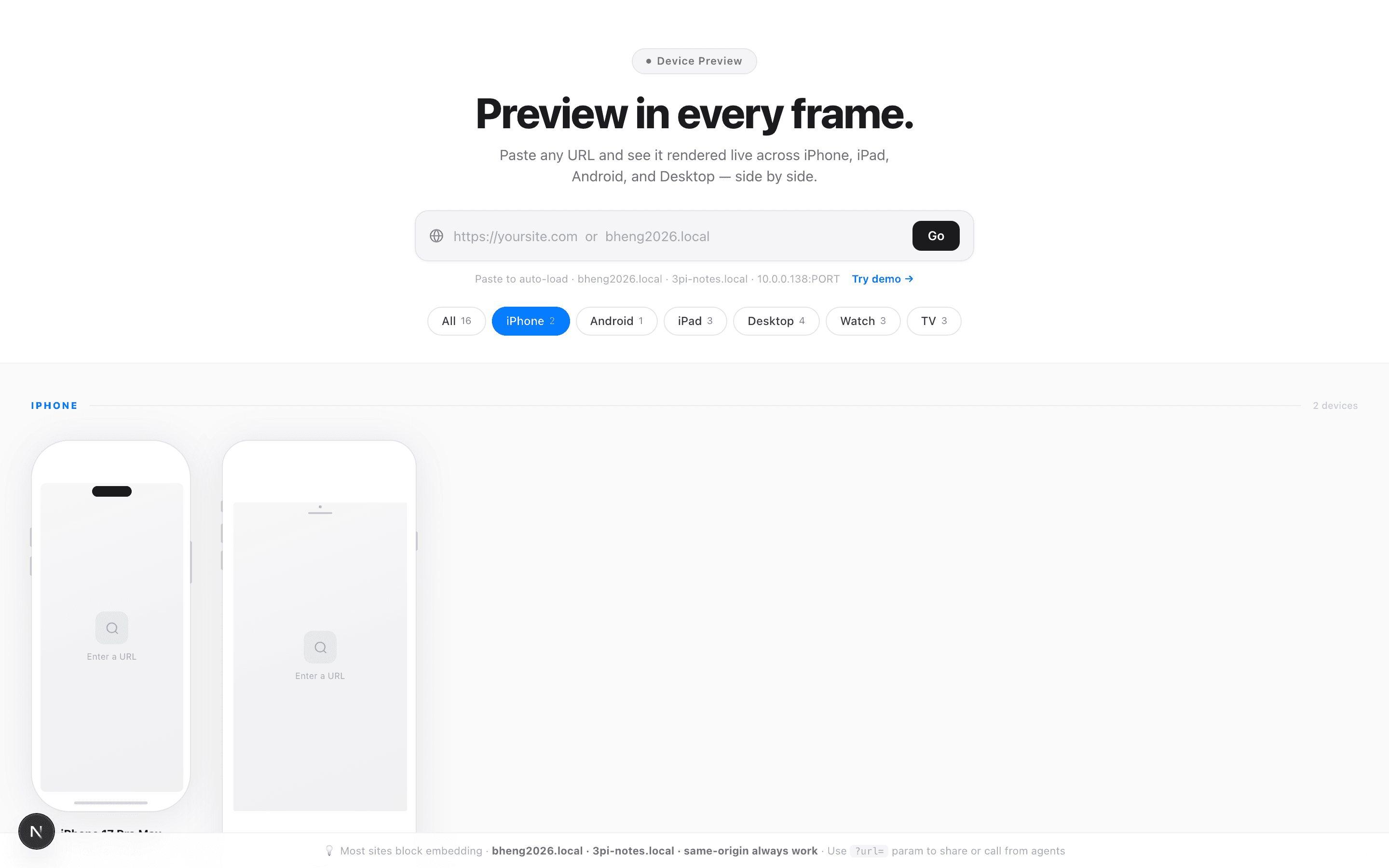
Making marketing materials, portfolios, or App Store screenshots always means reaching for Figma or Sketch to add device frames. Device Frames eliminates that step — drag your screenshot in, pick a device, download the result.
What it does
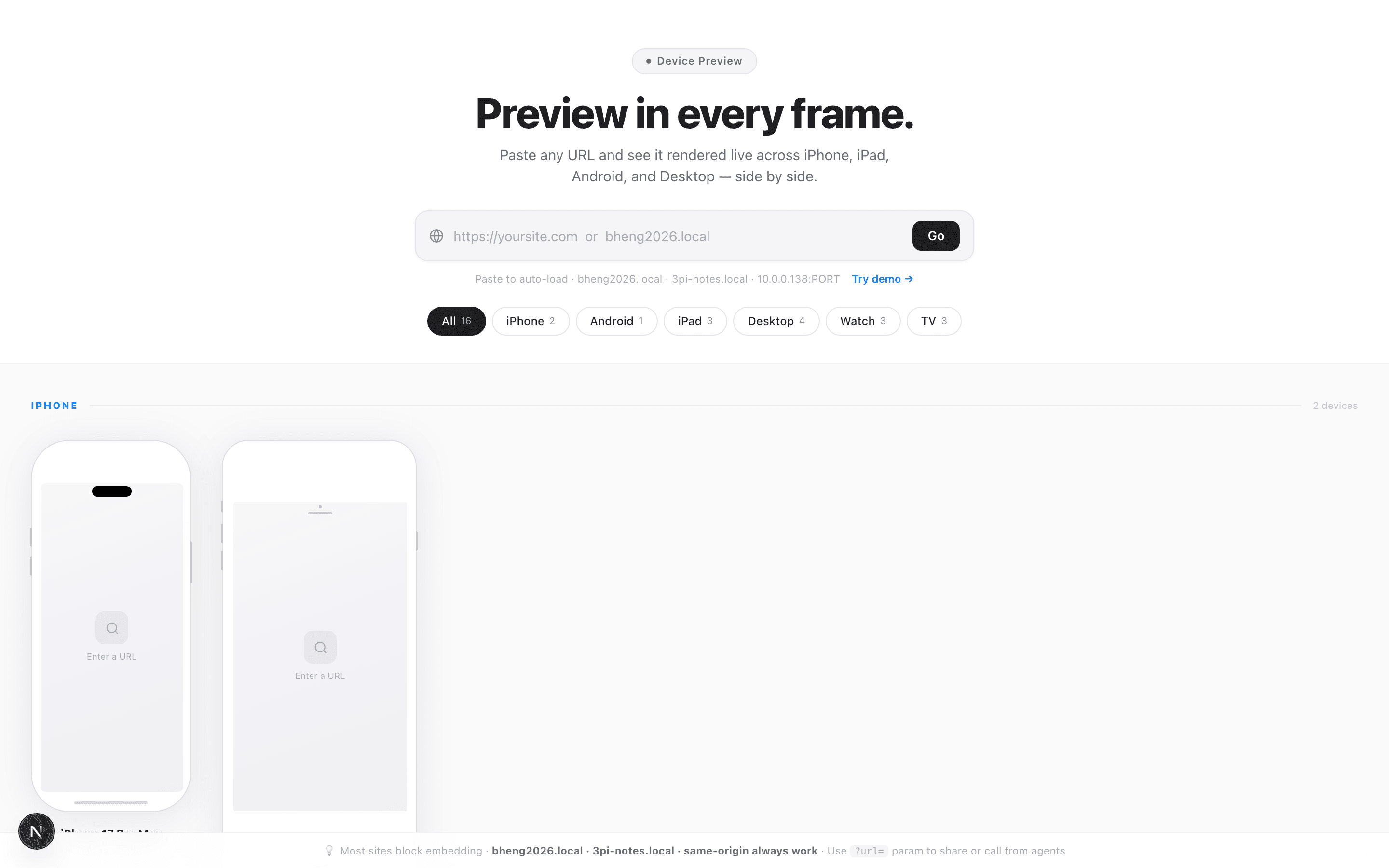
Upload any screenshot image. Select from a library of ~20 device frames spanning iPhones (5s through 17 Pro Max), iPads, Pixel phones, Macs, Apple Watch, and Apple TV. The tool composites your screenshot into the frame and exports a PNG.
Supported devices
- iPhone — 5s, SE, XR, 14/15/16/17 Pro Max (with Dynamic Island)
- Android — Pixel XL 2
- iPad — mini M5, Pro 11", Pro 13"
- Desktop — iMac (27")
- Watch — Apple Watch Ultra
- TV — Apple TV
Features
- Dynamic Island — iPhone 14+ models render the correct notch shape
- Home button — older iPhones render the home button correctly
- Filter by category — quickly jump to iPhone, iPad, Android, etc.
- Device specs — each device card shows screen size, PPI, aspect ratio, and OS
- URL param persistence —
?device=iphone-17-pro-maxrestores your selection - PNG export — exports at full resolution for App Store / marketing use
- In-browser compositing — no server, no upload, fully client-side canvas
How compositing works
The frame itself is an SVG or canvas shape. Your image is rendered inside the viewport rectangle defined per device (e.g. 430×932 for iPhone 17 Pro Max). The canvas API clips the image to the screen area, overlays the frame SVG, and exports the combined result as a PNG blob.
Screenshots
Comments
Be the first to leave a comment.
Related Posts